
Clinic Flow · Backup & restore guide
Clinic backup and restore guideHave a copy.
Know how to use it.
A practical guide for clinic administrators. Confirm your backup and recovery arrangements with the team before relying on them.
1. Download a clinic backup
Sign in with a clinic administrator account. Open Settings and the Backups & Recovery section. Use the clinic backup/export option and keep the downloaded file in a protected location.
Check that the file belongs to the correct clinic and note the export date. Restrict access to exported files: they can contain patient and business records.
2. Understand the restore choices
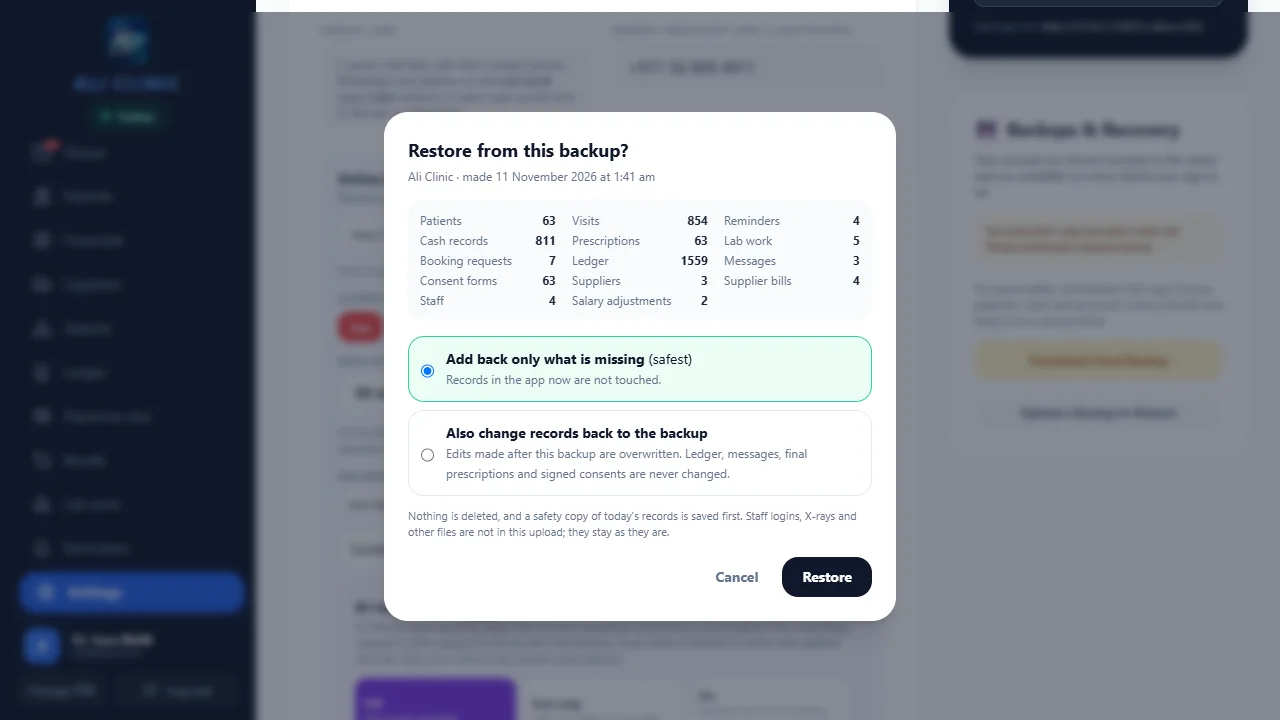
Arrange a walkthrough using sample data before a real restore. The app checks the clinic identity and creates a safety copy before starting the administrator restore workflow.
- Add missing: restores supported records that are absent without replacing existing records.
- Replace where supported: updates eligible records. Protected records, including final prescriptions, financial ledger entries, signed forms and supported message records, are kept rather than overwritten.
- Keep later work: a restore is not a blanket deletion of records created after the backup.
Read the preview and section counts before continuing. Stop and contact support if the clinic identity, date or results do not match your expectation.
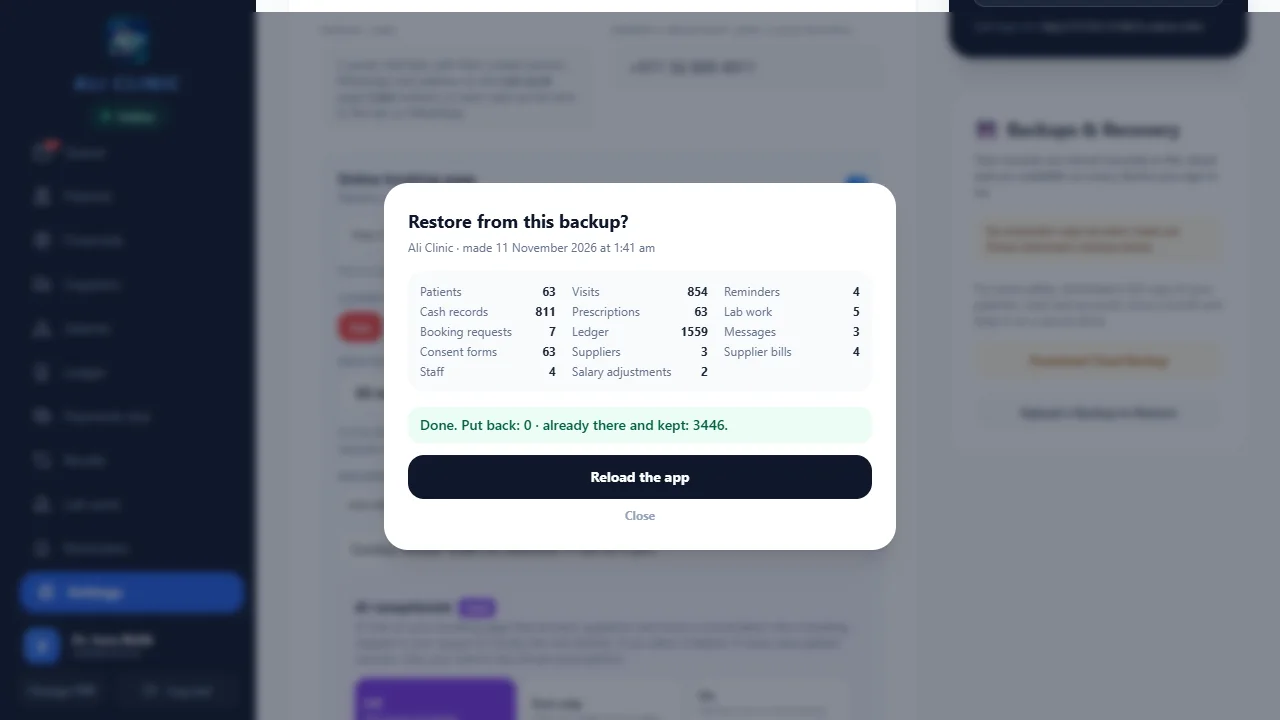
Sample-data restore walkthrough
In an isolated sample clinic, we downloaded a backup, previewed its sections and ran “Add back only what is missing”. The check kept 3,446 existing sample records and left the before/after record counts unchanged. This is a sample workflow demonstration, not a recovery-time guarantee for your deployment.
3. Know what your copy contains
A downloaded clinic data backup and server-held copies of uploaded files are different parts of recovery. Do not assume that downloading the data file independently downloads every X-ray, attachment or voice file.
Ask the team to confirm coverage for your deployment, backup location, available history and the steps for restoring uploaded files. Keep an off-device copy where appropriate. No fixed recovery time or zero-data-loss guarantee is stated.
Pharmacy POS has a separate local daily backup workflow on Windows. Ask for the instructions for that product and protect the pharmacy PC and backup location.
4. Get help without exposing records
WhatsApp support is Monday–Friday, 9am–6pm PKT, with replies within 2 support hours. Weekends are closed.
For an initial enquiry, send the clinic name, approximate export date and the problem description. Do not send a backup containing patient records through the public enquiry form. Agree an appropriate transfer process with support if a file is needed.